QR code menus for restaurants and bars: build one for free and update it without reprinting
How to create a QR code menu for your restaurant, bar or café: menu, bookings, delivery and WhatsApp on one page, with a QR code you can edit.

Bitlink Team
2 min read
Quick answer
For a QR code menu you never have to reprint: build a page with your menu, bookings, delivery and contact, and generate a dynamic QR code pointing to that page or to a short link. When prices or the daily special change, update the destination and the QR code on the tables keeps working.
- Put the menu on a lightweight page, not a heavy PDF.
- One QR code per location (table, bar, window) to measure.
- Add bookings, delivery, reviews and Wi-Fi.
- High-contrast QR code with a label that says what it does.
What your menu page should include
- Menu with photos and prices: as a grid collection or a link to your menu.
- Daily special or promo at the very top.
- Bookings: link to your reservation system or WhatsApp with a pre-filled message.
- Delivery and takeout: links to your delivery apps or your own ordering.
- Location and hours: link to Google Maps.
- Reviews: a link to leave a Google review.
- Wi-Fi and socials: Instagram and, if you like, the Wi-Fi password in the bio.
Step by step
- 1
Create the page
Sign up at Bitlink with your venue's name, for example
bitlink.click/cafemarea. - 2
Add the menu
Use grid collections with a photo and name for each section (starters, mains, desserts, drinks) or link your menu.
- 3
Add bookings and delivery
WhatsApp, your booking system and delivery apps as buttons.
- 4
Create a short link per location
/cafemarea-table,/cafemarea-bar,/cafemarea-window, all pointing to your page. - 5
Download the QR codes as SVG
SVG for print: no quality loss on stickers, acrylic stands or vinyl.
- 6
Print with a clear label
“Scan to see the menu” next to the code.
QR code design for tables
| Placement | Recommendation |
|---|---|
| Table sticker | At least 3 × 3 cm (1.2 in), laminated so it survives cleaning |
| Acrylic stand or menu holder | Large QR, small logo, label with the action |
| Shop window | Large QR at eye level to see the menu when you're closed |
| Receipt or packaging | QR to reviews or your Instagram to bring people back |
What to measure
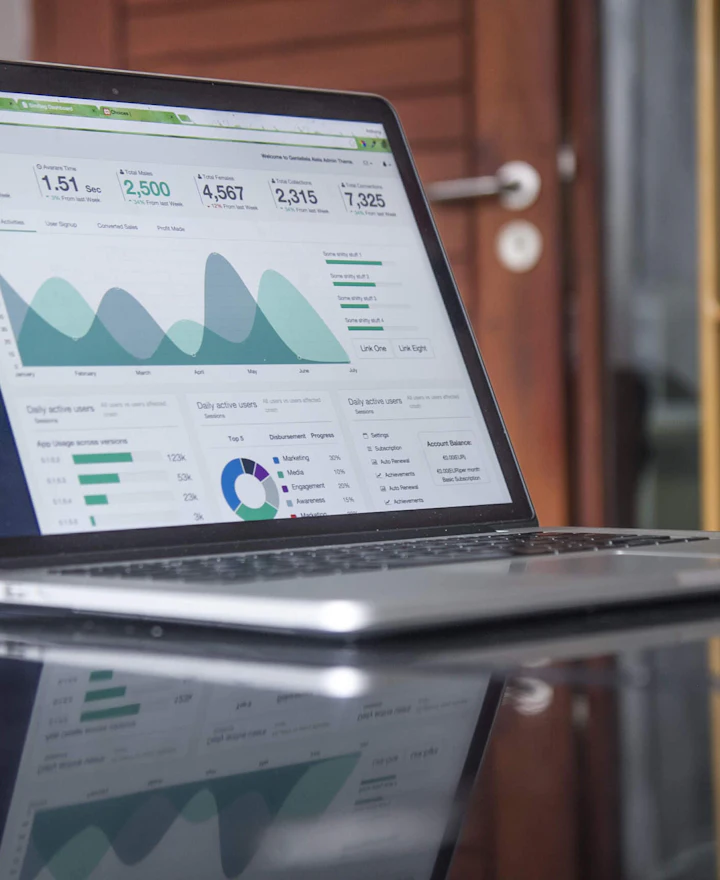
Each scan is a click on the short link: you see scans per day, by location and by device type. If the window gets lots of scans after hours, put an online ordering button right at the top. More in editable QR code.
Your QR code menu, free
Menu, bookings and delivery on one page, with an editable QR code.
Create my Bitlink →Frequently asked questions
Is a PDF or a page better for a QR code menu?
A page: it loads faster on phones, reads better and you can update it without creating a new file.
Do I need to reprint the QR code if prices change?
No, as long as the QR code points to a short link or your Bitlink page. Update the content and the QR stays the same.
Can I see how many people scan the QR code?
Yes. Each scan counts as a click on the short link, with date, country and device.
Does it cost anything?
No. The page, short links and QR codes are free on Bitlink.
Build your Bitlink for free
Link in bio, short links, QR codes and analytics. No plans, no card.
Create my Bitlink →